Trusted Certificates for Private Servers - Part 3
In part one of this series, I walked through the steps to generate self-signed, untrusted certificates for your private Caddy server. In part two, we skipped the manual generation and distribution steps and instead automatically retrieved trusted certificates for private servers. In this third and final installment, I'll show you how to extend this pattern out to other parts of your internal infrastructure, including routers and wireless access points by performing DNS-01 challenges from within OpenWrt.

Options
There are two ways we can install the necessary packages and get our certificates issued.
- Web UI
- SSH/CLI
You'd probably suspect that the Web UI would be easier, but it's not. The process of issuing certificates for internal services is a slow one, as you'll have to wait around for the DNS propagation to complete. If you start this from the Web UI, there are no status updates or progress indicators. What happens if you accidentally close the browser tab before the certificate is issued? Who knows?
Browsers like Chrome will also continue to cache the old self-signed certificate even after the new one is issued and installed. This makes double-checking the certificate status a bit more difficult. I'm unsure if this cache is just per browser window or whether you need to fully restart your Chrome-alike browser of choice. I've always got too many tabs open to risk finding out.
It's really not that user-friendly.
SSH/CLI install
The output and updates from the SSH/CLI process are much more verbose and technical, but personally, I find it reassuring to see these progress and status updates, even if I only understand a small fraction of them.
Get started by logging in to your OpenWRT device via SSH and installing the ACME client packages.
Similar to our experience with Caddy last time, the base installation of the ACME packages doesn't include the DNS-01 challenge support.
Luckily for us, the acme-acmesh-dnsapi package which supports the DNS-01 challenges brings in everything else as a dependency, so we just need to specify that one package for installation.
$ opkg update && opkg install acme-acmesh-dnsapi
#...
Configuring acme-common.
Certificate renewal enabled via cron. To renew now, run '/etc/init.d/acme renew'.
#...
Configuring acme-acmesh.
Configuring acme-acmesh-dnsapi.
Out of the box, OpenWrt comes with a default configuration for the ACME client.
$ uci show acme
acme.@acme[0]=acme
acme.@acme[0].account_email='email@example.org'
acme.@acme[0].debug='0'
acme.example_wildcard=cert
acme.example_wildcard.enabled='0'
acme.example_wildcard.staging='1'
acme.example_wildcard.domains='example.org' '*.example.org'
acme.example_wildcard.validation_method='dns'
acme.example_wildcard.dns='dns_freedns'
acme.example_wildcard.credentials='FREEDNS_User="ssladmin@example.org"' 'FREEDNS_Password="1234"'
acme.example_wildcard.calias='example.com'
acme.example_wildcard.dalias='dalias.example.com'
acme.example_subdomain=cert
acme.example_subdomain.enabled='0'
acme.example_subdomain.staging='1'
acme.example_subdomain.domains='example.net' 'www.example.net' 'mail.example.net'
acme.example_subdomain.validation_method='webroot'
You can crib from this as an example, but you'll basically want to delete this whole configuration block and replace it with your own. The answers for these settings should be fairly obvious if you managed to follow along with part two of this series.
$ uci delete acme.example_wildcard
$ uci delete acme.example_subdomain

$ uci set acme.@acme[0].account_email='i.am@mikecoats.com'
$ uci set acme.@acme[0].debug='1'

$ uci set acme.front_room_access_point=cert
$ uci set acme.front_room_access_point.enabled='1'
$ uci add_list acme.front_room_access_point.domains='front-room-access-point.plumtreecottage.network'
$ uci set acme.front_room_access_point.validation_method='dns'
$ uci set acme.front_room_access_point.dns='dns_mythic_beasts'
$ uci add_list acme.front_room_access_point.credentials='MB_AK="tn1871z1k3bgzv9j" MB_AS="OWAR9wkL35X;b5ax1X,m3QU-Rxu-aO"'
$ uci set acme.front_room_access_point.staging='0'

$ uci commit
Once you've made these changes, you can run the ACME client to issue the certificates.
$ /etc/init.d/acme renew
This command will take a few minutes to complete, and you'll see a lot of output as it goes.
You'll probably even see a few errors in the middle of the process, but they'll normally be related to DNS propagation and will resolve themselves when the script automatically retries those steps after a short delay.
You can now see the newly issued certificates in /etc/ssl/acme.
$ ls -1 /etc/ssl/acme
front-room-access-point.plumtreecottage.network.chain.crt
front-room-access-point.plumtreecottage.network.combined.crt
front-room-access-point.plumtreecottage.network.crt
front-room-access-point.plumtreecottage.network.fullchain.crt
front-room-access-point.plumtreecottage.network.key
Tell your OpenWrt device to use these certificates by editing the uHTTPd configuration block and restarting the service.
$ uci delete uhttpd.defaults

$ uci set uhttpd.main.key='/etc/ssl/acme/front-room-access-point.plumtreecottage.network.key'
$ uci set uhttpd.main.cert='/etc/ssl/acme/front-room-access-point.plumtreecottage.network.fullchain.crt'
$ uci set uhttpd.main.redirect_https='1'

$ uci commit

$ /etc/init.d/uhttpd reload
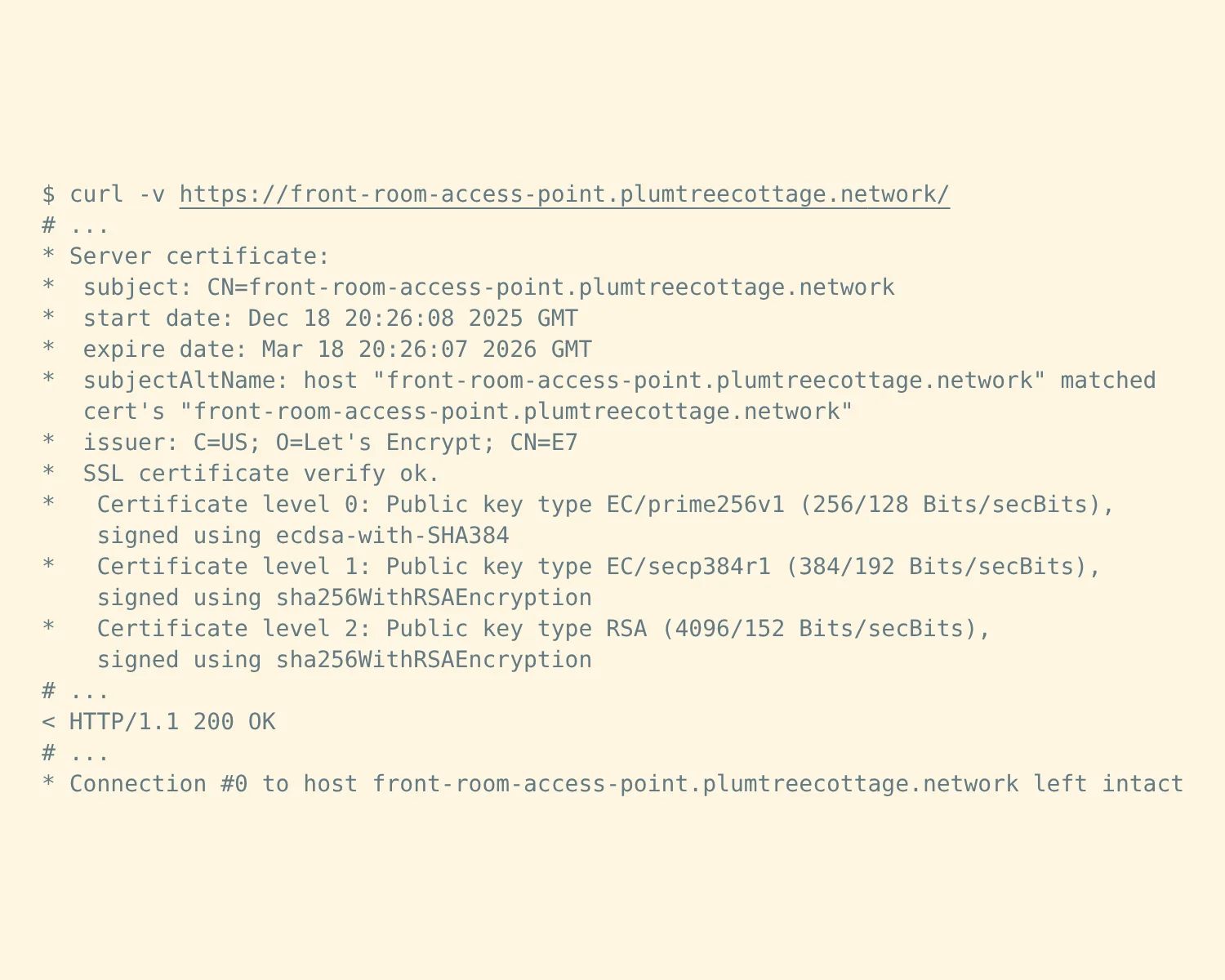
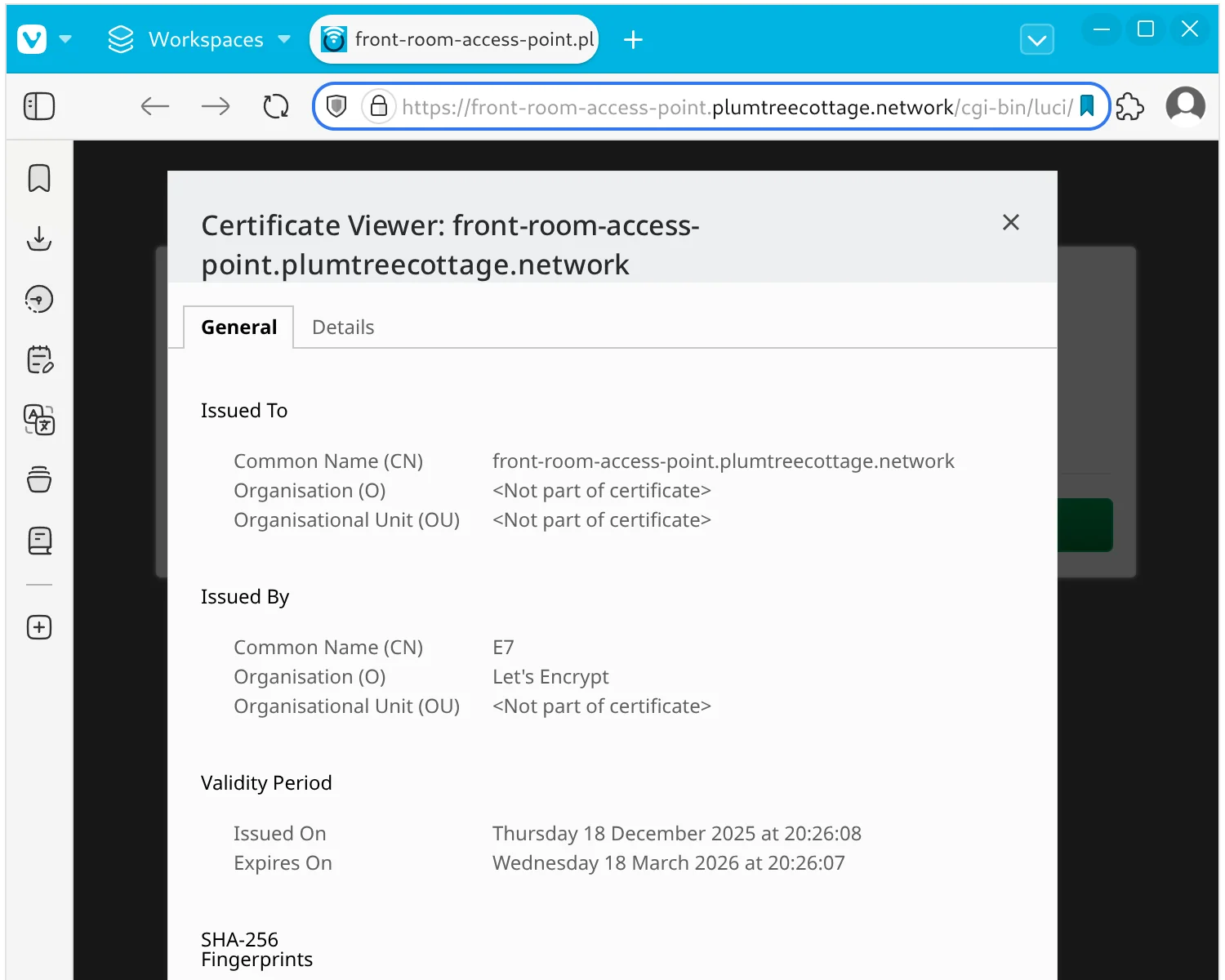
With the new certificates in place, you should now be able to access your private server via trusted HTTPS.
Web UI extras
If you really want to use the Web UI, you'll need to install the following packages in addition to acme-acmesh-dnsapi and its dependencies.
luci-app-acmeluci-app-uhttpd
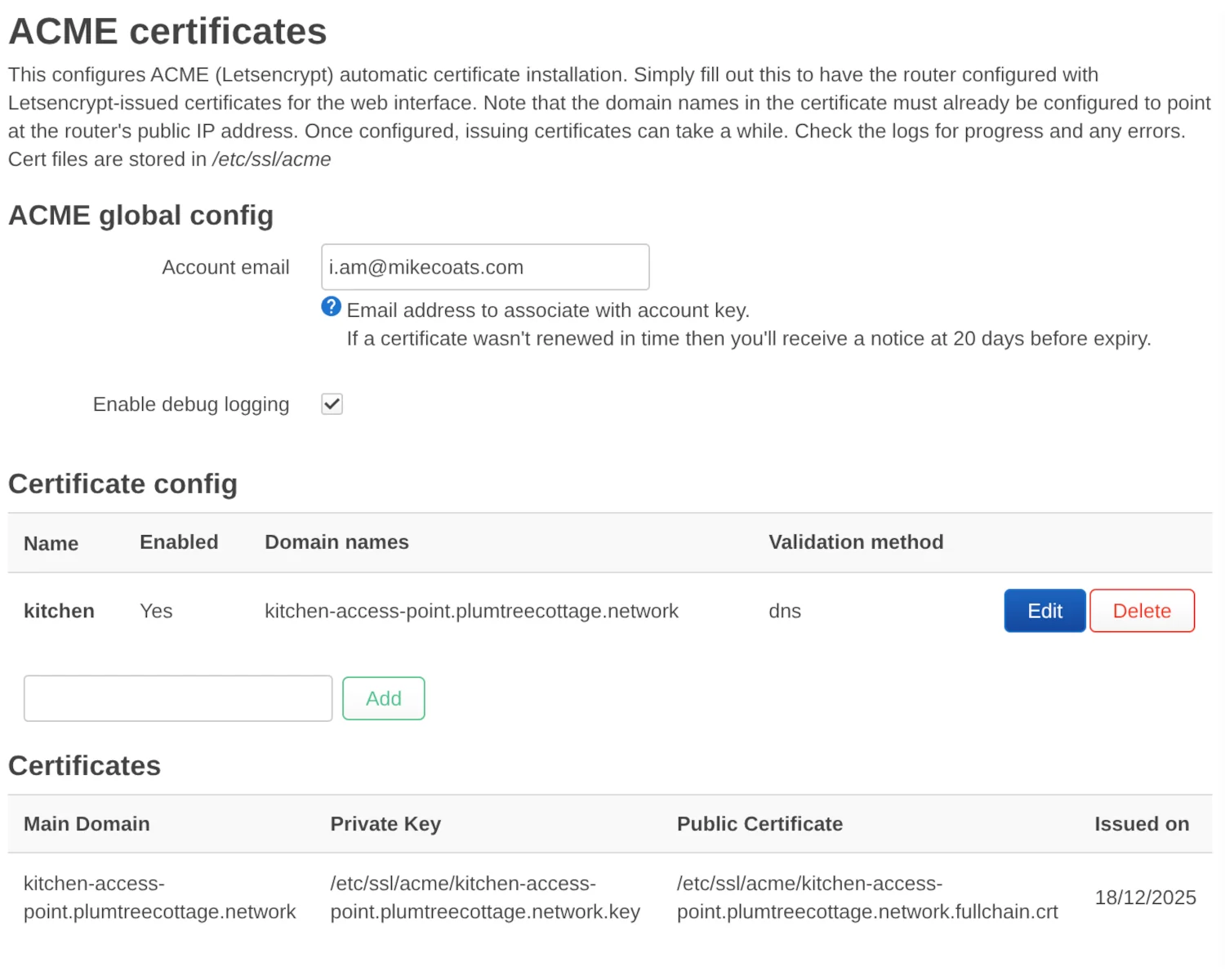
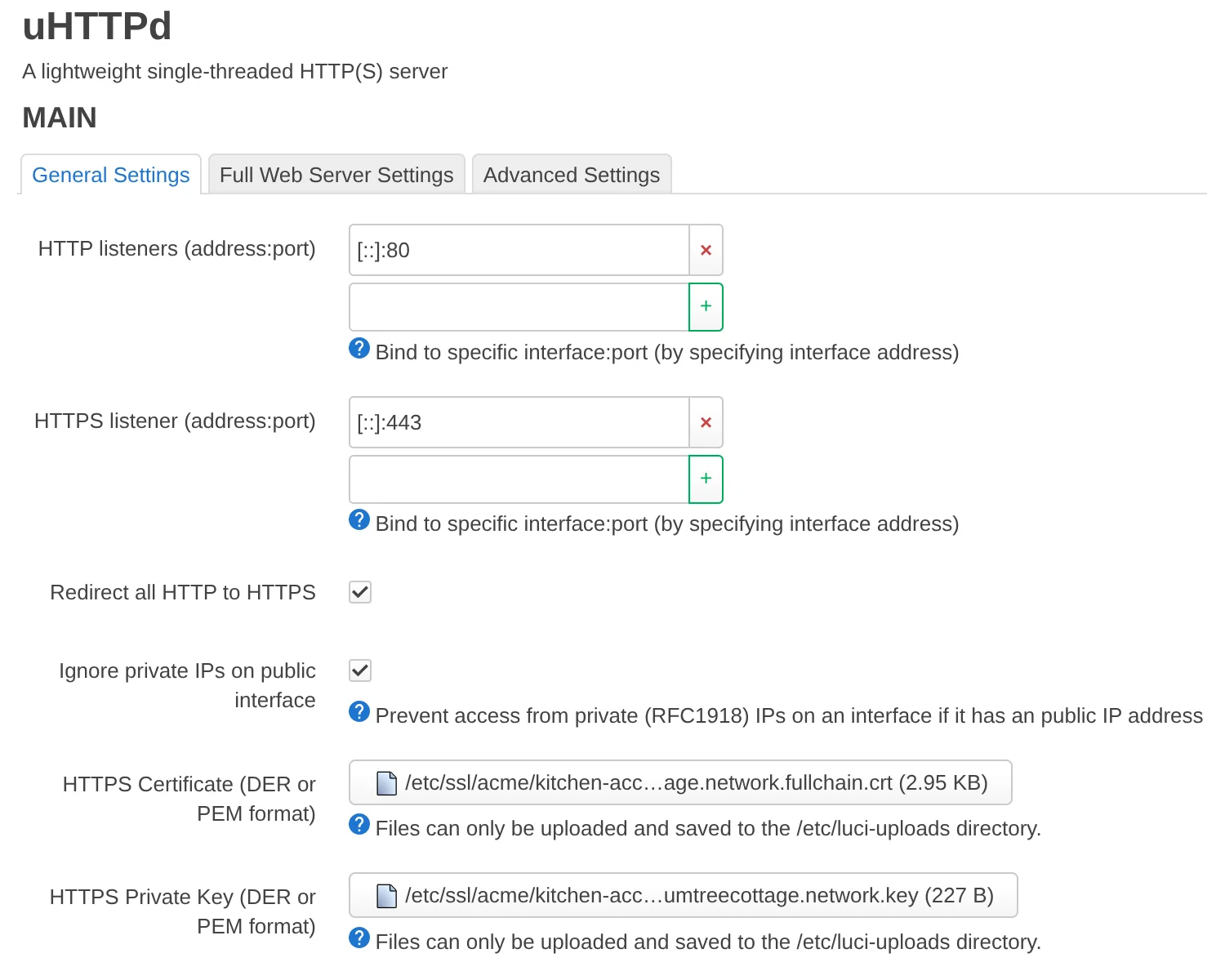
This will give you new "ACME certificates" and "uHTTPd" sections in the LuCI web interface under the "Services" menu, where you can make all the equivalent uci set changes as above.
With that, we've come to the end of this series. We started by manually creating and distributing our own certificates, then moved on to automating the process with Caddy, and finally extended that automation to OpenWrt. Using DNS-01 challenges instead of HTTP-01, we can ensure that many pieces of our private infrastructure are secured with trusted, automatically renewing certificates, without ever having to expose our internal services to the public internet.
2026-01-01